📘 Docs & getting started
Get started with UltraDesk
Two ways to run it, an attended session in under a minute by support code, and unattended access for machines you manage — all with visible consent and an always-on session indicator.
1 · Install
Pick the mode that fits — both are signed by Spectra Technologies India Private Limited.
2 · Run an attended session with a support code
- Technician: generate a short support code and read it to the customer (or send the link).
- Customer: enter the code at the support-code box, or open the link.
- Customer: download & run UltraDesk (portable — nothing installed).
- Customer: an unmissable prompt names who is connecting — click Allow. Deny anytime.
- You're connected. A banner stays on screen the whole session so the customer always knows.
3 · Set up unattended access
- Install the MSI (service mode) on the machine you manage.
- Enrol it to your account; it appears in your Saved machines address book with live online status.
- Connect anytime with per-account permissions — the always-on indicator still shows, so access is never silent.
- Sensitive actions (blank screen, input lock) are gated to authorised accounts and audited.
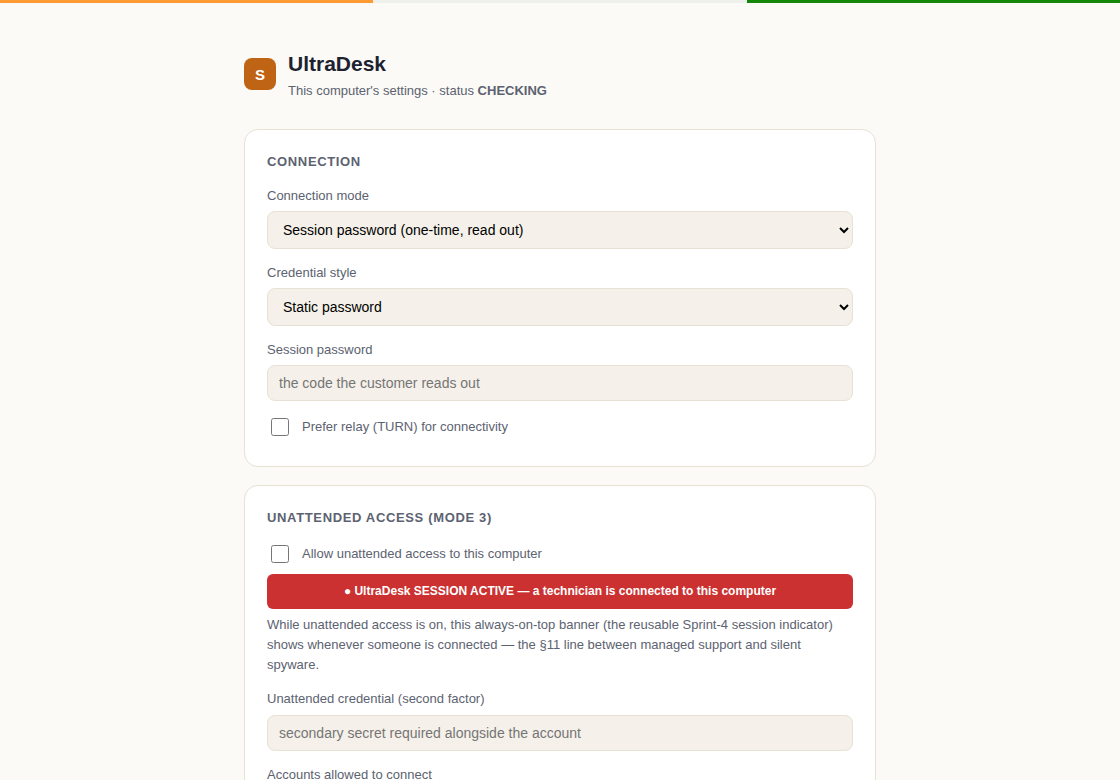
The customer-side settings panel — the person at the machine controls how UltraDesk behaves.
4 · Consent & the session indicator (anti-scam)
Before anyone can see or control a screen, an explicit Allow / Deny prompt names the connecting account. Throughout the session an un-hideable banner names who is connected — the technician can't move, close or suppress it. This is the design, not a setting. Read the security model →
5 · Licensing & billing
- You license the support side: one seat = one concurrent technician. Supported customer machines are unlimited and free.
- Pay per seat by UPI; your account activates once payment is verified. A grace window means an in-flight renewal never drops you mid-cycle.
- Manage seats, machines and revoke (format-recovery) in your portal.
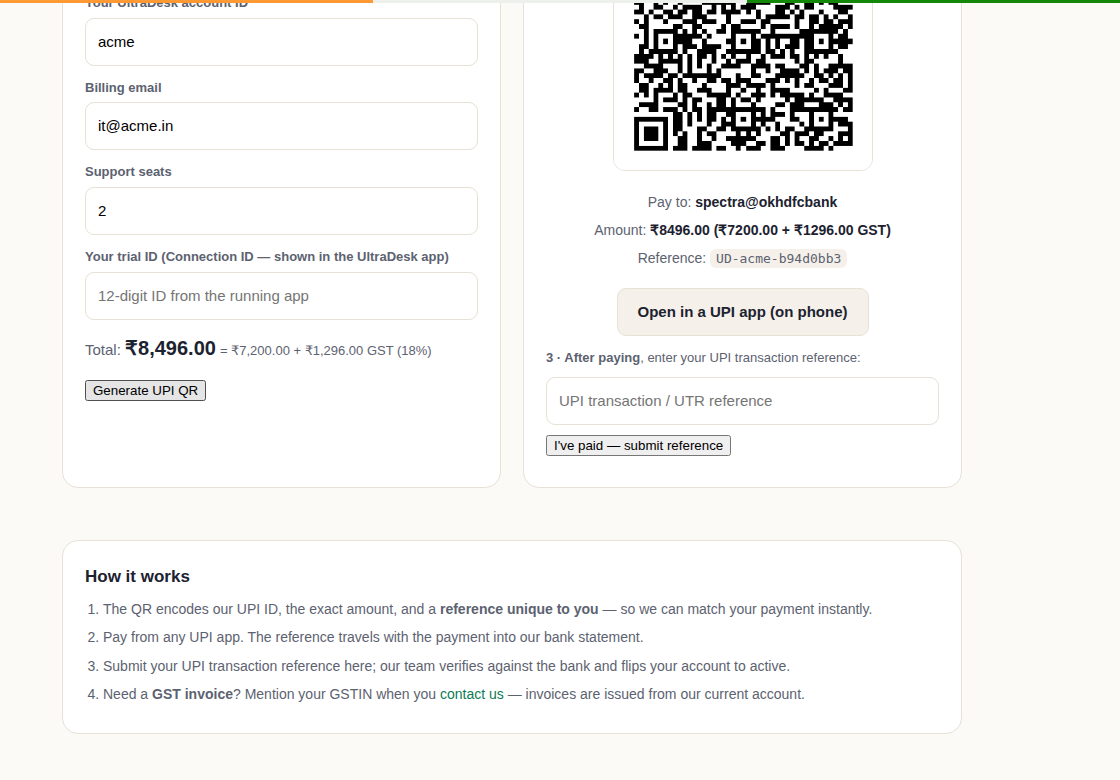
Paying per seat by UPI — the amount is shown GST-exclusive (base + 18% GST) with a unique reference for instant reconciliation.